
You’ve probably put a lot of hard work into your site. It might even be your primary source of income. Sure would be a shame if something happened to it….
Don’t worry, that’s not a Godfather-style threat. We’re on your team. Think of this more as a friendly word of warning.
A WordPress backup is a complete copy of your website’s files and database that you can use to restore your site if it’s hacked, corrupted, or broken by a bad update. There are three main ways to make one: manually via SFTP and phpMyAdmin, automatically with a backup plugin, or through your hosting provider’s built-in backup tools.
Why does it matter? Well, what if your website files become corrupted or hackers lock you out of your own site? With a recent backup, you can be back online quickly. Without one, you’re rebuilding from scratch.
In this guide, we’ll walk you through all three backup methods — plus how to test your backups so you know they’ll actually work when you need them.
Ready? Let’s give it a go!
Why you should back up your WordPress website
If anything goes wrong, you can use a backup to restore your website to full working order. It’s basically your digital insurance policy.
More About Website Backups
A website backup is a partial or complete copy of a website’s data, saved so the site can be restored after data loss, hacking, or a failed update. A complete backup includes the site’s databases, code files, media, and extensions, and is often stored off-site in cloud storage.
This safety net offers more than peace of mind. If you rely on your website for business, having a backup ready to go means fewer lost sales and unhappy customers.
That’s why we always recommend making regular backups of your website, so your site is never down for long.
How often should you make site backups?
Back up your site as often as its content changes. The right schedule depends on your website:
- If you have a constantly updated site, such as a high-traffic blog or an e-commerce site, you’ll want to perform backups daily.
- Websites with mostly static content are usually fine with less frequent backups (e.g., once a week or longer intervals).
- Either way, make an extra backup right before any big change: a major plugin update, a theme swap, or a WordPress core upgrade.
It’s also a good idea to make multiple backups and save them in different places. Just as your site can become compromised or lost, your backups could be destroyed or deleted, too.
Keeping multiple recent backups in different locations increases the chance that a usable copy will be available if another fails.
The different flavors of WordPress backups
Not all WordPress backups are made equal. Let’s do a quick run-down.
- Full site backup: A complete copy of your site. A full backup contains the files and database needed to restore your entire site, but the restoration process depends on the tool or hosting provider. The downside is that they take a while to complete, and each backup requires as much storage space as your entire website.
- Incremental backups: These backups make a copy of any site changes made since the last backup. They’re quick to run and they take less storage capacity, but they only cover your more recent content.
- Differential backups: Halfway between the two, differential backups cover all changes since your last full site backup. This means you don’t copy your entire site every time, but all your data is backed up. It’s a nice balance between efficiency and coverage.
Many hosting providers and WordPress plugins allow you to choose between these options.
We recommend making full site backups every month, and then filling the gaps with differential or incremental backups, depending on the importance of your recent content.
How to back up WordPress (3 easy methods)
If you Google the topic of WordPress backups, a million different options come up. Maybe that’s how you arrived here!
In reality, there are three main ways to back up your site. Everything else is just noise (aka marketing).
Let’s take a look at the big three:
1. Back up your WordPress site manually
Backing up your WordPress site manually is the hardest method, but sometimes it’s necessary.
If you’re ever locked out of your WordPress dashboard due to an error or a security issue, this might be your only option.
To get started, you’ll need your Secure File Transfer Protocol (SFTP) credentials. They’re usually visible in your hosting panel. If you can’t find them, just contact your host — they can root them out for you.
Once you have your SFTP credentials, download and launch a suitable client, such as FileZilla. We like this particular app because it’s free, open source, and easy to use.
Here’s how to use it:
Open the app, enter your credentials, and hit Quickconnect.

Once FileZilla has established a connection with your hosting server, you’ll need a destination folder for your backup. You can create one without leaving FileZilla.
Right-click on your device file list, usually on the left of the screen.
Select Create Directory and name the new folder.
Next, drag the WordPress files from your server (on the right) and drop them into the new folder you just created (on the left).
The download may take a while — coffee time! — but once it’s done, you’ll have a backup of your site’s files saved to your computer.
We’re not quite done yet, though. You still need to back up your WordPress database.
To do this, download your database via the phpMyAdmin tool, which you can find in the hosting panel. Again, the download may take some time. But once it’s done, your manual backup is complete!
Pro tip: Consider syncing your new folder to the cloud using a service like Dropbox. This ensures you’ll still have a backup even if your computer dies.
2. Install a WordPress plugin to run automatic backups
Using a plugin is much easier and faster than backing up WordPress manually.
Tools like UpdraftPlus — actively installed on more than 3 million websites, according to its WordPress.org listing — allow you to schedule automatic backups, so you can’t forget.
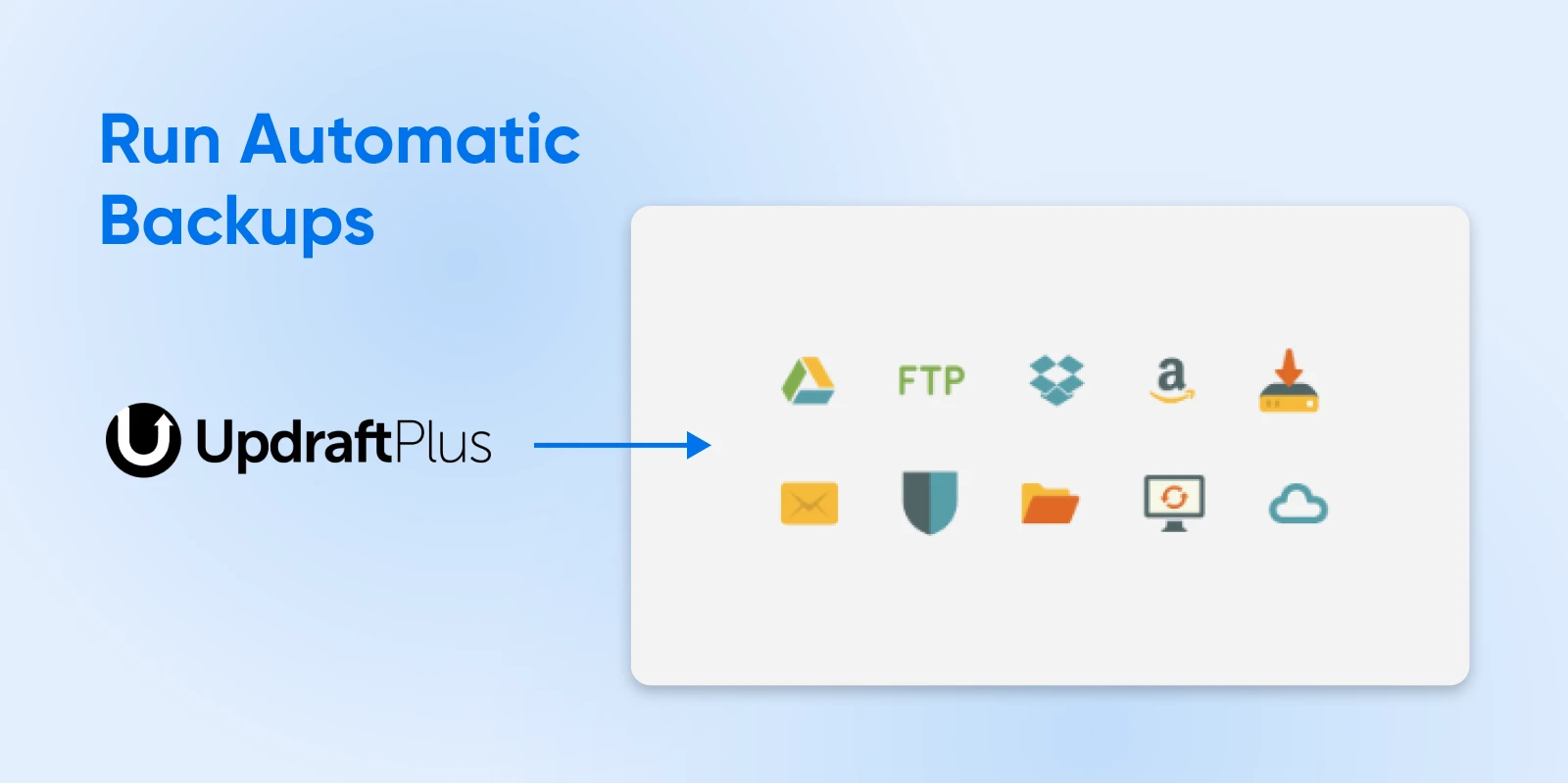
To set up this backup method, you first need to install and activate your chosen plugin. Then, follow the set-up instructions or visit the settings page.
You can set your backup schedule, choose where to save the backups, and select the exact files you want to copy. UpdraftPlus’s free version, for example, can run backups on a schedule ranging from every two hours to monthly.
Many WordPress backup plugins (including UpdraftPlus) let you save backups locally and in the cloud — think Dropbox, Google Drive, or Amazon S3. This is a great way to keep backups in multiple locations as an extra precaution.
One downside of this method is that you need to ensure that backups are being created. Which leads us to our third option…
3. Manage backups through your hosting provider
Some hosting providers (including DreamHost) offer a built-in backup feature.
How you access, schedule, save, and restore your backups will vary depending on your provider. At DreamHost, all WordPress hosting plans include automated daily backups. DreamPress, our managed WordPress hosting, goes further: your automated daily backups are stored offsite on Amazon S3 and kept for 14 days on DreamPress 1 through 3, or 30 days on DreamPress 5 and up. You can also create on-demand backups and lock important ones so the daily cycle never overwrites them.
Automated backups are super convenient; they run in the background without you having to do a thing.
You can also supplement them with on-demand backups outside of your regular schedule — for example, right before pushing changes to your live site.
If you’re a DreamPress customer, you can create, download, and restore backups right in your DreamHost panel:
- Visit Websites > Manage Websites, and click Manage next to the relevant domain.
- Select the Content tab, then click Backups.
- Here, you can create new manual backups, download a copy, or restore your site with a click.
On any DreamHost plan, you can also back up your entire account — every user, database, and mailbox — from the Manage Account page in the panel. The backup files stay available to download for 14 days.
Pro tip: Treat host backups as one layer of your plan, not the whole plan. On our Web Hosting plans, for example, the panel keeps roughly two weeks of website file backups, and our own documentation is upfront that those backups aren’t guaranteed — so download your own copies, too.
How to test your WordPress website backup
So, you’ve built your backup process. It seems to be working properly.
But how can you tell if the backups are legit? Could you restore your site from these cloned files?
There’s only one way to tell. You need to try running your site from the backup files.
To do this, it’s best to create a WordPress “sandbox,” a playground where you can run your site under test conditions.
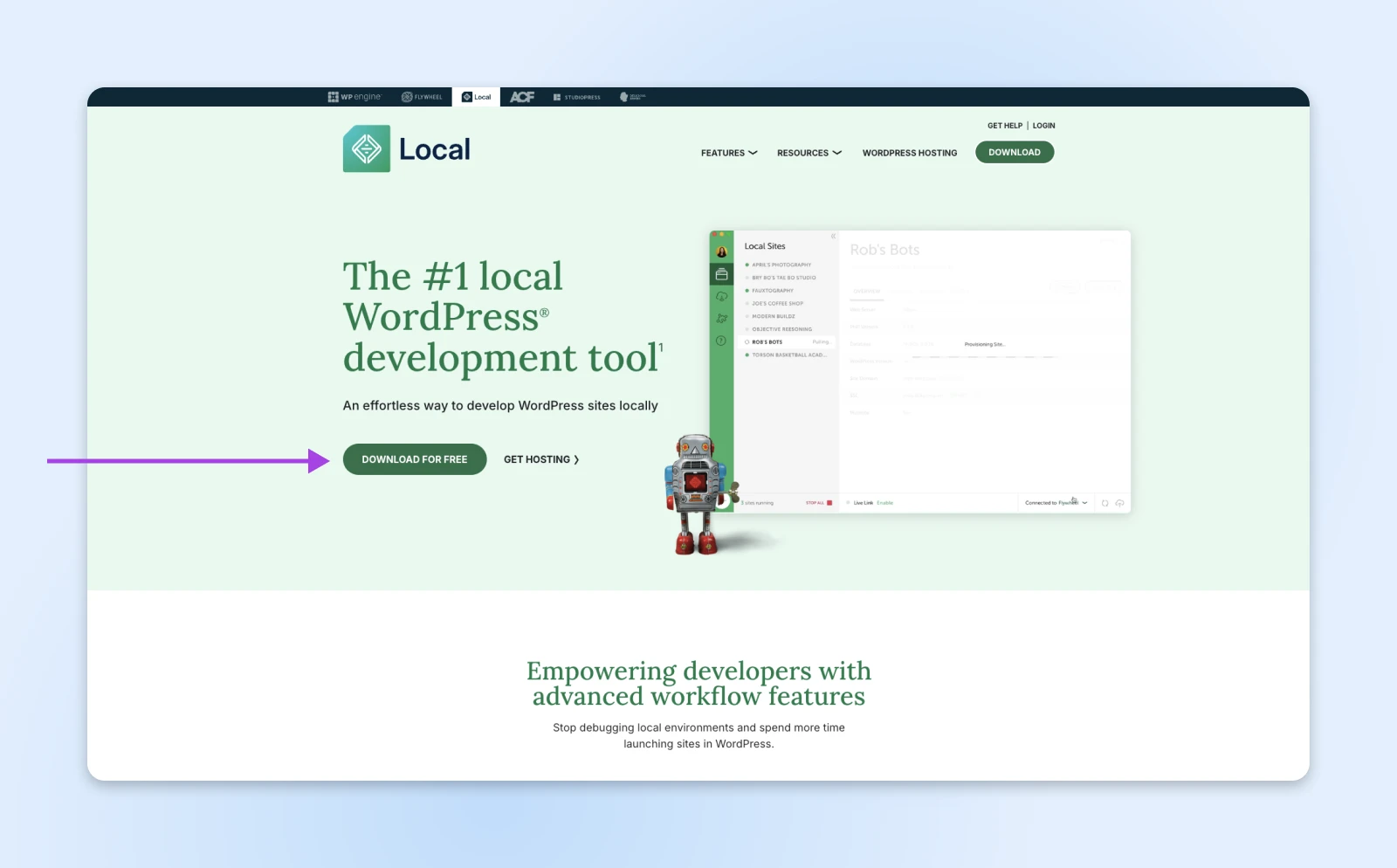
The easiest way to build your play park is by running WordPress locally on your device with a desktop WordPress app. The screenshots below show one called Local.
Download Local and install it on your computer.
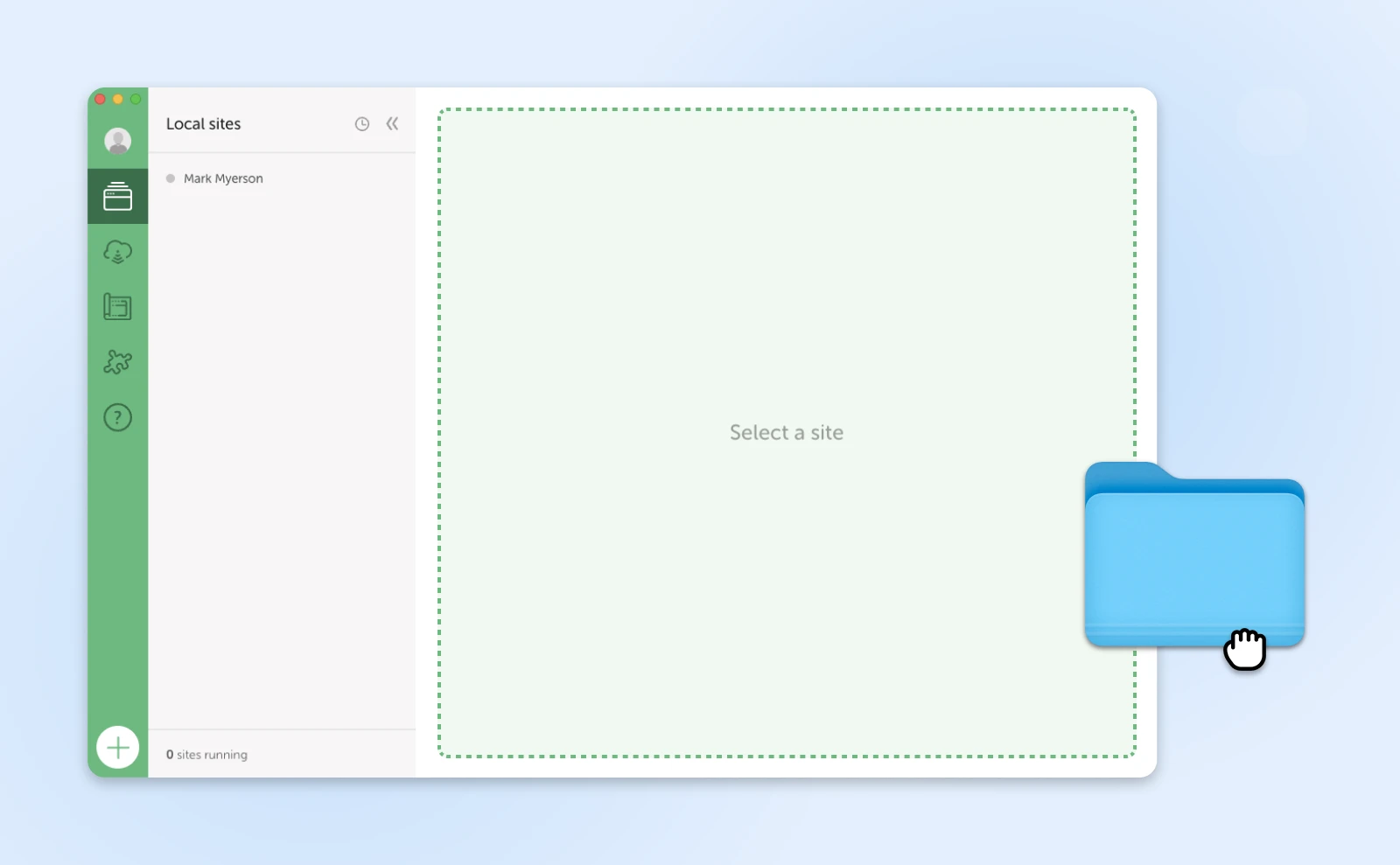
Locate the Local-compatible ZIP archive on your device. Drag and drop this file into the Local sites section of the app.
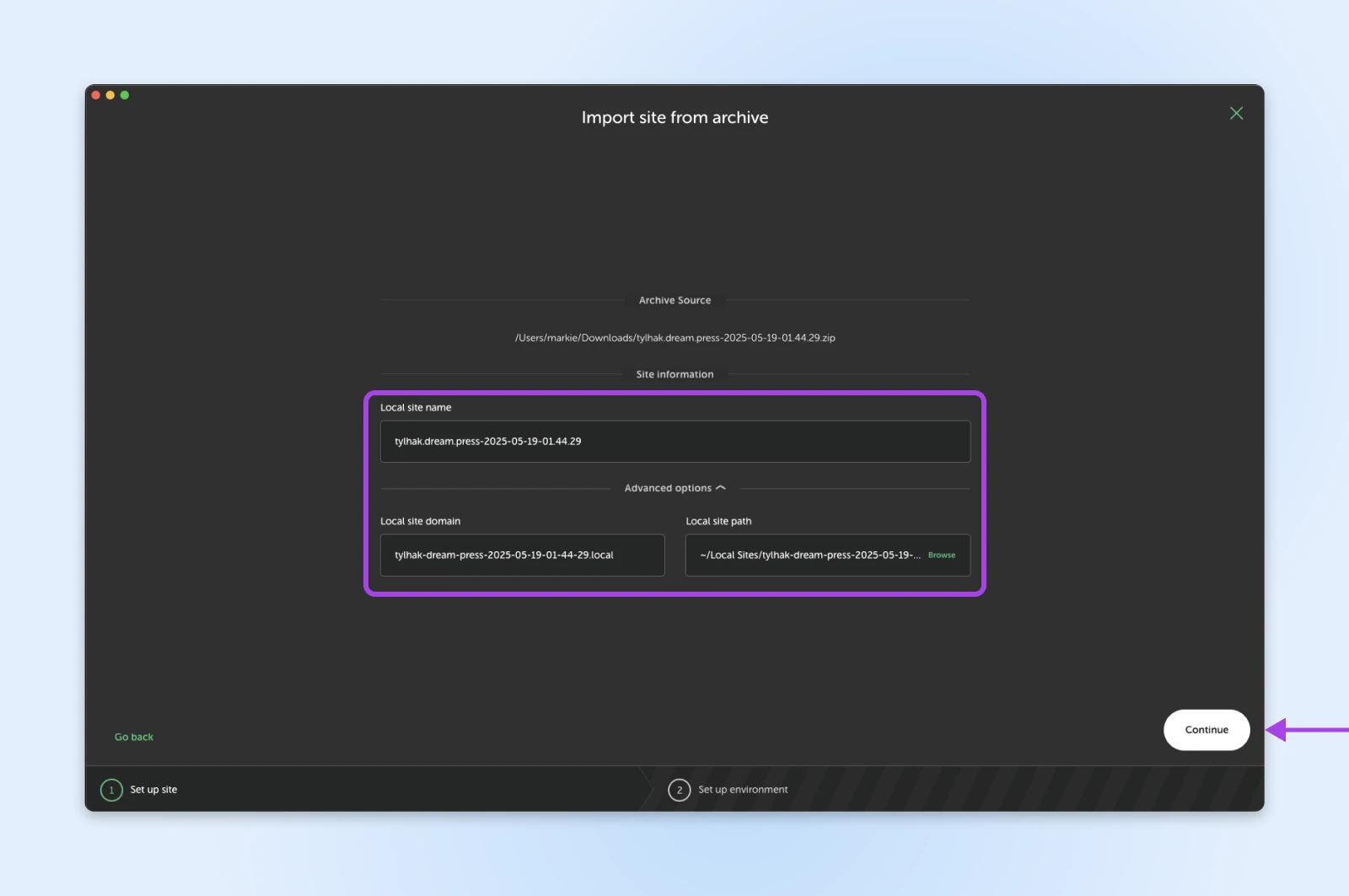
You’ll then be asked to name your local site, choose where to install it, and select a local domain. Once you’ve done that, click Continue.
Finally, the app will ask what environment you want to use. Keep Preferred selected unless you want to dive into geeky stuff!
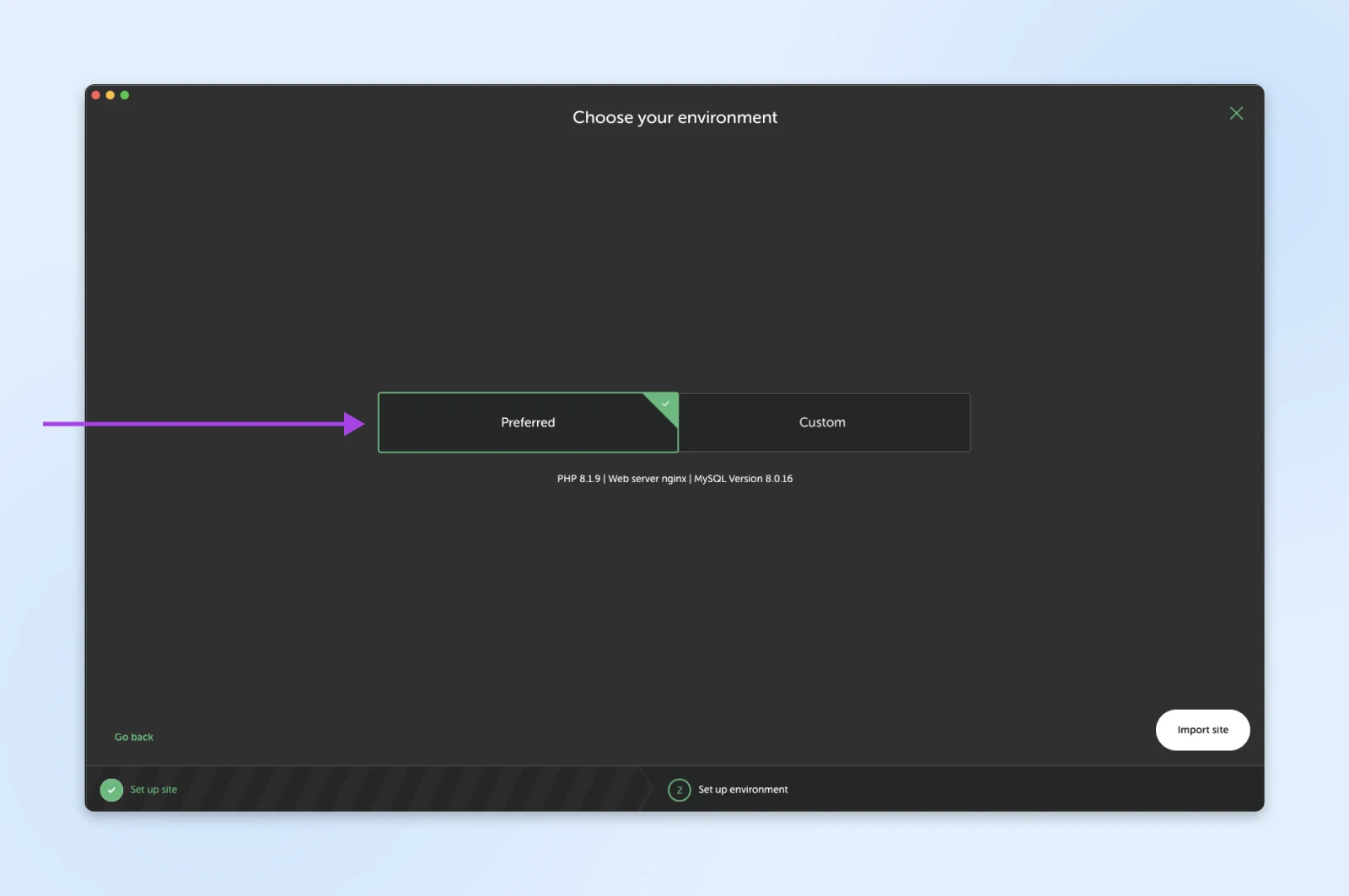
Finish by hitting Import site.
The app should then get to work. Once the process is finished, your site will appear in the left-hand Local sites panel.
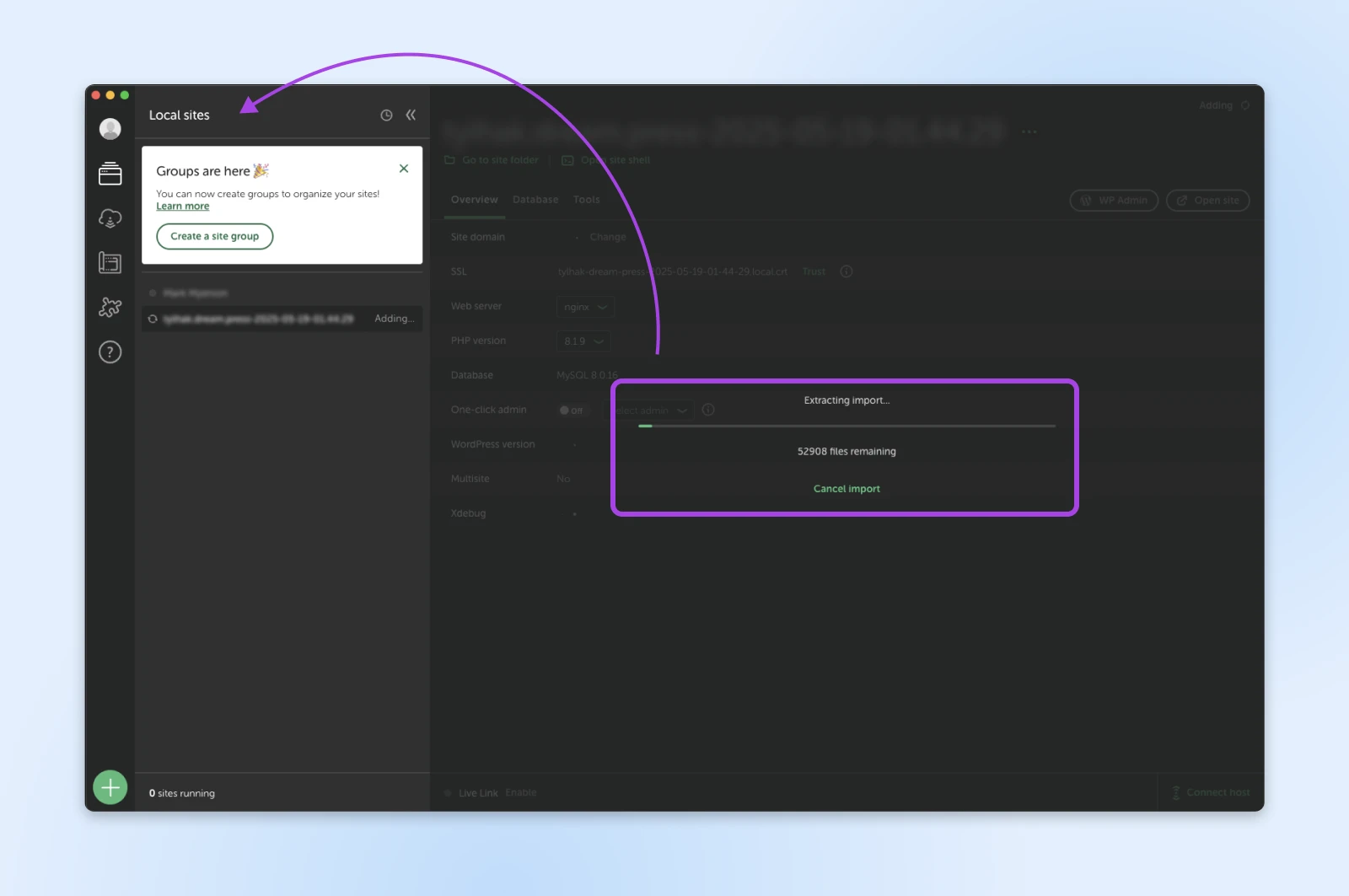
Click on the site here to start your test environment, and then visit your site by heading to the local domain you chose earlier.
Once you’re in, check that everything is working properly. Be methodical — work through each page, testing all the features.
All looking good? Great, that means this backup restored successfully in your test environment. Repeat the test periodically and after changing your backup setup.
Related tool: Every DreamPress plan includes 1-Click Staging, which provides a clone of your site for safely testing changes. This is separate from testing whether a backup can be restored.
What to do if your backup process goes wrong
Of course, it’s possible that your backups don’t work properly. What then?
Let’s look at some common problems and their solutions.
- Small file size: If your backup is just a few kilobytes, it might only cover the database. Revisit your method and make sure your files are included.
- Corrupted backup files on your host server: If your hosting plan has capped storage, your backups might not fit within the limits of your plan.
- Pro tip: If you store plugin backups on the server, (Not recommended! 😬) this will also increase the size of your full site backup. Luckily, DreamPress plans come with 15 GB to 200 GB of NVMe SSD storage, depending on the plan.
- Corrupted backup files on your device: Downloads aren’t perfect. To ensure you always have a working backup, save copies of your site in multiple places.
- Broken features on the restored site: You might restore your site, but certain features break in the process. This is often caused by incompatibilities between older and newer versions of WordPress, themes, and plugins. Be sure to keep all three up to date!
- Pro tip: With DreamPress, we handle updates for you, along with speed, security, and backups. (Weighing your hosting options? See our comparison of managed WordPress hosting vs. VPS.)
WordPress backup FAQs
Still have questions? These are the ones we hear most often.
Does DreamHost back up my website automatically?
Yes. All WordPress hosting plans at DreamHost include automated daily backups. On DreamPress, those daily backups are stored offsite on Amazon S3 and kept for 14 days (DreamPress 1 through 3) or 30 days (DreamPress 5 and up). Even so, we recommend downloading your own copies periodically — multiple backups in multiple places is always the safest setup.
How do I download a backup of my DreamHost site?
On DreamPress, go to Websites > Manage Websites in your DreamHost panel, click Manage next to your domain, and open the Content tab. Click Backups, then choose Create Download from the three-dot menu next to any backup. You’ll be notified when the file is ready to download — the full walkthrough is in our DreamPress backups guide. On other plans, you can download a copy of your site anytime manually via SFTP and phpMyAdmin.
How do I restore my WordPress site from a backup?
It depends on how the backup was made. On DreamPress, the same Backups screen in the DreamHost panel has a Restore button next to each available backup (heads up — restoring overwrites your current site). If you backed up manually, upload your files via SFTP and import your database, then test the site carefully. Our guide on how to restore your website covers the options in your panel step by step.
How do I back up my WordPress database?
The simplest manual route is phpMyAdmin: open it from your hosting panel, select your site’s database, and export a copy to your computer. Backup plugins and host backups typically include the database automatically — just confirm yours does, because a files-only backup can’t fully restore a WordPress site.
Can I back up my DreamHost email too?
Yes. You have a few options: create an account backup in the DreamHost panel (it covers every mailbox on your account), move messages into local folders in an email client like Apple Mail, download your inbox over a POP connection, or use webmail’s export option — which works one folder at a time, with a 50 MB limit per export. Our guide to backing up email walks through each method.
Do I still need a backup plugin if my host makes backups?
It’s smart to keep at least one backup outside your hosting account. Host backups are convenient, but they have retention limits (DreamPress keeps automated backups for 14 or 30 days, depending on the plan), and any backup stored in only one place is a single point of failure. A plugin that copies backups to cloud storage — or an occasional manual download — gives you a second safety net.
Back up your WordPress site today
In the end, the method you use to back up your website doesn’t really matter. What counts is getting the job done.
A recent, tested full-site backup can help you recover after a security incident, human error, or technical failure.
And if you’d rather never think about backups again, that’s what DreamPress, our managed WordPress hosting, is for. Every plan includes automated daily backups stored offsite, on-demand backups before big changes, restores right from your panel, and 1-Click Staging for safe testing.

Unbeatable WordPress Hosting
Reliable, lightning-fast hosting solutions specifically optimized for WordPress.
See More